How many times do you use your PC in a day? Whatever the number be, what if you could convert that boring interface into an interactive one using Python?
New to Python? Just check out this post to get started with Python from scratch.
Using Python, you can do a lot more than what we are going to discuss now, but starting small in the beginning makes sense.
So in this tutorial we’ll be making a program to wish us good morning/afternoon/evening according to the time when we start our computer. You can even extend the program to say a preset message or to read out the weather report or the latest news and even more stuff, but in this tutorial we’ll limit ourselves to begin with a very basic program.
Python has lot of predefined libraries. What are Python libraries?
Library : It is a collection of modules.
A Python library is a collection of functions and methods that allows you to perform lots of actions without writing your own code.
Libraries are simply where already code to perform certain tasks is written. We just have to access the required information using basic commands.
Python due to its very large community has a lot of libraries available online which make our work easier, and that is one of the reasons why Python is gaining immense popularity since the last decade.
In this program we’ll use two modules.
datetime(pre-installed with Python)pyttsx3(which is to be installed )
To install pyttsx3 we’ll use pip . In newer versions of Python (3.4+), pip is already installed.
Just open up a Command Prompt and type:
pip install pyttsx3

If this doesn’t work then try using:
python -m pip install pyttsx3
One of two methods will surely work for you .
So till now we have installed the required modules. Now we need to build our program and now its time to code.
You can use IDLE which comes bundled with the official Python3 distribution, or you can use IDEs (Integrated Development Environments) such as PyCharm, which make our work a bit easier.

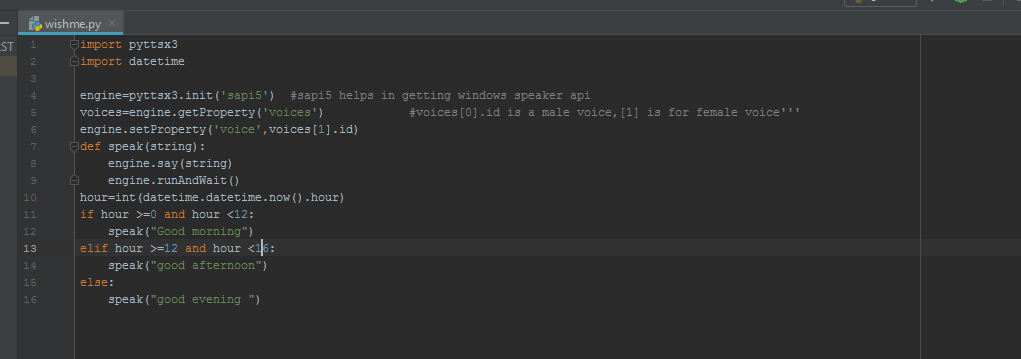
So lets understand the code line by line
- First we import the two modules that we are going to use (both are already discussed).
- Then we use the
pyttsx3module to initialize “sapi5” which is Windows Speech API which makes our task to convert text into speech easier.
What is an API?
An API (Application Programming Interface) in very general language, is an interface given to a computer program to interact with applications, just like a GUI (Graphical User Interface) enables users to interact with an application graphically.
Basically, it enables our scripts or programs to use applications or softwares just like us.
- Now to avoid calling to initialize
sapi5again and again, we assign this work to a variable “engine” (you can give any name to the variable). - Then we ask the
pyttsx3module to get voices from Windows. By default, there are 2 voices inbuilt. Changing [1] to [0] changes the voice from female to male. - Now we set the property “
voice” to [1] which is a female voice.

- Now we define a function
def speak(text): - Defining a function makes our work a bit easier. Now we just have to call the function
speak("Text to be spoken")and our program will speak whatever we pass in as thetextparameter and thus, we don’t have to write a whole bunch of code for using thepyttsx3module again and again. - Now we use
engine.say()which uses thepyttsx3module to narrate whatever we pass in as thetextparameter. engine.runAndWait()is also necessary as it stops further reading of code when engine.say() is being executed.
- Now we made a variable
hourwhich will store an integer value. We use thedatetimemodule ,anddatetime.datetime.now().hourto get the current time (only hour). - Now we are done with all the technical work that we are required to do and now we are required to build simple logic using
if,elseandelif(which stands forelse if) and boolean operatorsand&or, whose working is depicted below.

- Now we are ready with our program. Just save the Python file as
anyname.pyand now you can run it to see it working.
import pyttsx3
import datetime
engine=pyttsx3.init(‘sapi5’) #sapi5 helps in getting windows speaker api
voices=engine.getProperty(‘voices’) #voices[0].id is a male voice,[1] is for female voice
engine.setProperty(‘voice’,voices[1].id)
def speak(string):
engine.say(string)
engine.runAndWait()
hour=int(datetime.datetime.now().hour)
if hour >=0 and hour =12 and hour <16:
speak(“good afternoon”)
else:
speak(“good evening “)
Automatically Run a Python Script on Startup
In windows we have a folder named startup where all files and scripts are stored which automatically gets executed when we start our PC.
C:\Users\Asus\AppData\Roaming\Microsoft\Windows\Start Menu\Programs\Startup
Points to note
- \
Asusis the username, which will be different for you. - You have to check the
Hidden Itemscheckbox in the View tab to access theAppDatafolder.
Copy and Paste your Python script into that startup folder and enjoy being greeted by your PC everytime you open it!
We hope you were able to successfully run this Python script on your computer. If you had any problems, please leave them in the comments, and we will try to help you out. Thank you for reading this article!
 Coding Fleet